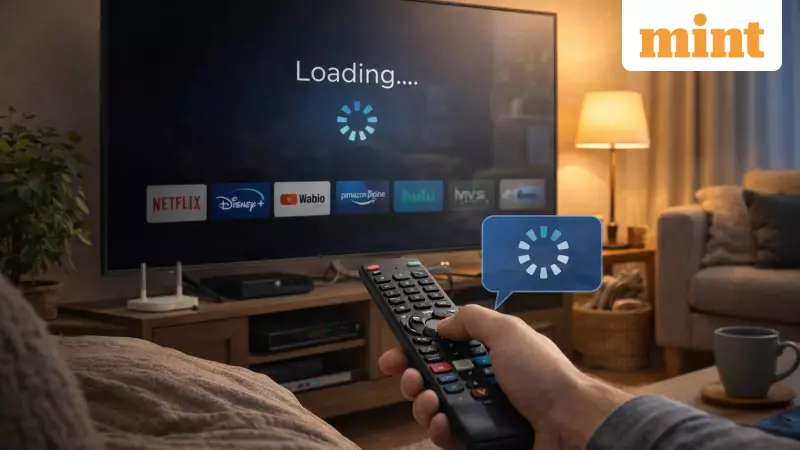
Experiencing a frustrating lag on your smart TV? You press a button on the remote, and there's a noticeable delay before the screen responds. Apps take forever to load, and navigating menus feels like a chore. This common modern annoyance often makes users wonder if their television is already obsolete. However, a sluggish smart TV doesn't necessarily mean it's time for a replacement. Often, the solution lies in simple maintenance and usage tweaks.
Why Does Your Smart TV Become Sluggish Over Time?
The primary reason for a slow smart TV is cluttered storage and memory. Think of your television as a compact computer that runs continuously. Streaming applications like Netflix, Prime Video, and Disney+ Hotstar constantly cache data—such as thumbnails, previews, and recommendations—to load content faster. Over months of use, this cached data accumulates, filling up the limited internal storage. When storage space runs low, the TV's processor struggles to manage tasks efficiently, resulting in the lag you experience.
Another significant factor is software updates. Manufacturers regularly push updates to add new features, improve security, or fix bugs. While the software evolves, the hardware inside your TV—its processor and RAM—remains the same. Older components are then forced to run newer, more demanding software, which can slow down overall performance. Additionally, unused or pre-installed apps often run background services, silently consuming precious memory and processing power without the user's knowledge.

Actionable Steps to Restore Your TV's Speed
Before considering a new purchase, try these effective methods to breathe new life into your slow smart TV. The first and simplest step is to perform a full power cycle. This means completely turning off the TV, unplugging it from the power outlet for about a minute, and then plugging it back in. This action clears the temporary memory (RAM) and can resolve many minor software glitches, often providing an immediate improvement in responsiveness. Merely putting the TV on standby is not enough.
Next, tackle the storage issue head-on. Go to your TV's settings menu and review all installed applications. Uninstall any apps you no longer use. There's no need to keep dozens of streaming services installed "just in case." Furthermore, look for an option to clear the cache data for individual apps. This removes temporary files without deleting your login information. Keeping only essential apps active frees up significant storage and reduces background activity.
Advanced Tweaks and Long-Term Solutions
If basic cleanup doesn't fully solve the problem, delve deeper into the settings. Some smart TV models allow apps to launch automatically at startup or run processes in the background. Disable auto-start and background permissions for non-essential apps to reduce memory pressure. Be cautious with software updates; ensure your TV is running a stable version, but avoid immediately installing every beta or feature-heavy update unless it addresses a specific problem you're facing.
For persistently slow TVs, consider an external solution. Connect an affordable streaming device like a Fire TV Stick, Chromecast, or Roku. This device handles all the smart functionalities and processing, turning your TV back into a simple display. This is an excellent workaround, as modern TVs are still excellent panels for picture quality. By offloading the smart features, you can enjoy seamless streaming without the lag.
In summary, a slow smart TV is frequently a sign of digital clutter, not hardware failure. Regular digital housekeeping—like restarting, deleting unused apps, and clearing cache—can restore much of its original speed. Updated on January 6, 2026, at 07:46 PM IST, this advice remains relevant for most smart TV brands available in the Indian market. A little effort can extend the life of your device and save you from an premature and expensive upgrade.