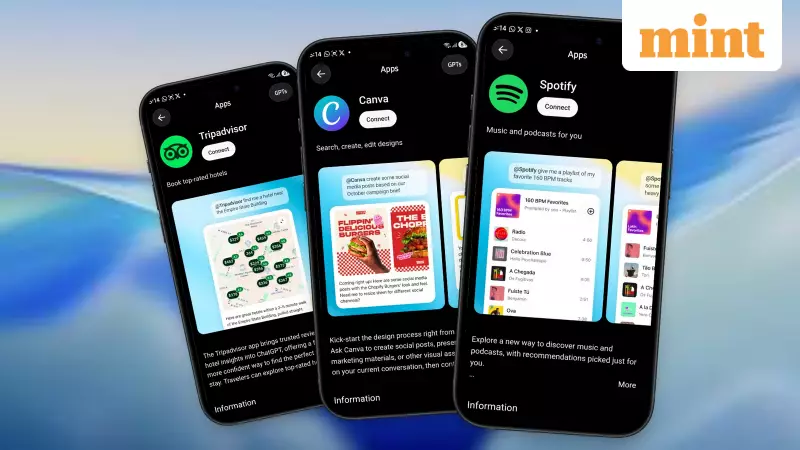
OpenAI has transformed ChatGPT from a conversational chatbot into a powerful hub for automating daily digital tasks. The introduction of ChatGPT App Integrations in late 2025 allows users to connect and command popular services like Spotify, Uber, and DoorDash directly within their chat window using simple voice or text prompts.
What Are ChatGPT App Integrations?
These are embedded third-party services that work seamlessly inside your ChatGPT interface. Instead of switching between multiple apps, you can now ask ChatGPT to perform actions for you. For instance, you can request a custom playlist on Spotify based on your mood, order ingredients for a recipe via DoorDash, or check Uber ride estimates with route options—all through natural conversation.
The feature is available to all users—Free, Plus, and Pro—across web browsers, iOS, and Android platforms. Key apps currently integrated include Spotify for music, Booking.com and Expedia for travel, Canva and Figma for design work, and Slack for team collaboration. Interactions are enhanced with inline previews like interactive maps, shopping carts, or audio snippets.

How to Set Up and Use ChatGPT App Integrations: A 6-Step Process
Here is a detailed, step-by-step process to get started with automating your tasks using these powerful integrations.
Step 1: Update and Explore
First, ensure you are using the latest version of the ChatGPT app on your smartphone or visit chatgpt.com on the web. You can start a new chat or specifically browse the dedicated Apps directory at chatgpt.com/apps to see all available services.
Step 2: Invoke with a Prompt
Begin your request by simply naming the app in your prompt. For example, type or say, "Spotify, create a high-energy workout playlist from my recent listens" or "DoorDash, add ingredients for butter chicken to my cart." ChatGPT will instantly recognize the app and activate the integration.
Step 3: Authorize and Connect
You will be prompted to sign in to your account for the respective service (like your Spotify or Uber account) and review the permissions. This is a one-time process for each app. You might grant access to location for Uber or your listening history for Spotify to enable personalized results.
Step 4: Interact and Refine
Once connected, ChatGPT will display interactive elements right in the chat. You might see a DoorDash menu preview or an Uber fare estimate. You can then refine the action with follow-up commands like, "Make it cheaper" or "Add a side dish."
Step 5: Complete the Action
Confirm the final details. For actions requiring payment or final confirmation, such as booking a ride or placing a food order, you will be redirected to the native app to complete the transaction securely. Playlists or design files, however, may save directly.
Step 6: Manage Your Connections
You can view and control all your active app connections at any time by going to Settings > Apps & Connectors. Here, you can disconnect any integration with a single click, ensuring your privacy and data security.
Pro Tips for Power Users in India
To make the most of this feature, Indian users can leverage voice input on mobile for truly hands-free control while multitasking. You can also combine apps in a single command for complex workflows. Try a prompt like, "Uber, book a ride to the restaurant after DoorDash orders dinner for delivery." To discover new capabilities, simply ask ChatGPT, "List available apps."
This evolution marks a significant step towards making AI-powered automation accessible for everyday life. By handling complex, multi-step tasks through simple conversation, ChatGPT's app integrations act like a genuine personal assistant, saving time and boosting efficiency for users across India.