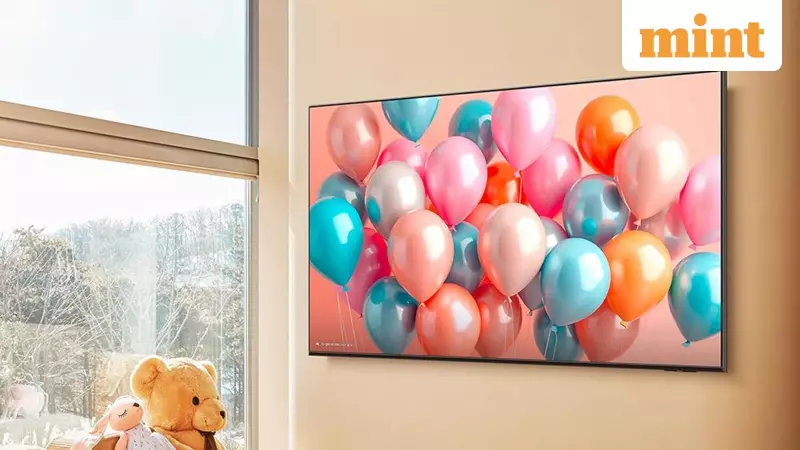
Unlock Your Samsung TV's True Potential: 5 Simple Settings to Fix
Your Samsung TV promises to complete your home entertainment system. It boasts bigger screens, sleek designs, sharp visuals, and rich colors. These features aim to make movies, shows, and sports more enjoyable. However, many users miss a crucial detail. The picture you see on day one is not always the best your TV can deliver.
Out of the box, Samsung TVs ship with default settings. These settings focus on power saving and showroom appeal rather than real home viewing. Features like Eco Mode, automatic brightness control, and aggressive picture modes can create problems. They might make the screen look dull, overly bright, or inconsistent. Instead of improving your experience, these settings can quietly ruin it.
The good news is simple. Fixing this issue is easy. By changing just a few simple settings, you can unlock better brightness, more natural colors, and a cleaner, more comfortable picture. Even if your Samsung TV is a few years old, these quick tweaks can make a noticeable difference. Everything on screen will look better.

1. Turn Off Eco Mode for a Brighter Screen
Eco Mode is turned on by default on most Samsung TVs. It saves power by lowering brightness and contrast. While it sounds useful, the power savings are usually small. The picture often looks dim as a result.
To turn it off, press the settings button on your remote. Go to All Settings, then General and Privacy, then Power and Energy Saving, and finally Energy Saving Solution. Switch it off. You should notice brighter visuals and richer colors right away.
2. Switch Off Brightness Optimisation
Brightness Optimisation uses a sensor to adjust the screen based on room lighting. In real use, this can be annoying. If your room light changes often, the TV keeps adjusting brightness. This constant change looks distracting.
Go to the same Power and Energy Saving menu and turn Brightness Optimisation off. This gives you a steady picture that does not change on its own.
3. Pick Movie, Cinema, or Filmmaker Mode
Samsung offers several picture modes, but not all are good for home viewing. Movie, Cinema, and Filmmaker Mode show more natural colors. They also reduce extra processing that can distort images.
Open All Settings, then Picture, then Picture Mode. Try these options. Avoid Dynamic or Sports mode. They are made for showrooms and often look too bright and harsh at home.
4. Set Brightness Separately for SDR and HDR
SDR and HDR content need different brightness levels. Samsung TVs allow you to adjust both settings independently.
For SDR, open a streaming app without playing anything. Go to Picture, then Expert Settings, then Brightness. Adjust it to what feels comfortable for your eyes.
For HDR, play an HDR video on YouTube or a streaming app. Then adjust the brightness again from the same menu. This ensures optimal viewing for each type of content.
5. Try Different Local Dimming Levels
Local Dimming improves contrast by controlling backlight zones. You can choose Low, Standard, or High settings based on your preference.
Go to Picture, then Expert Settings, then Local Dimming.
- Low reduces light halos around bright objects.
- High boosts contrast for deeper blacks.
- Standard balances both effects.
Test all three options and choose what looks best to your eyes. This simple adjustment can significantly enhance your viewing experience.