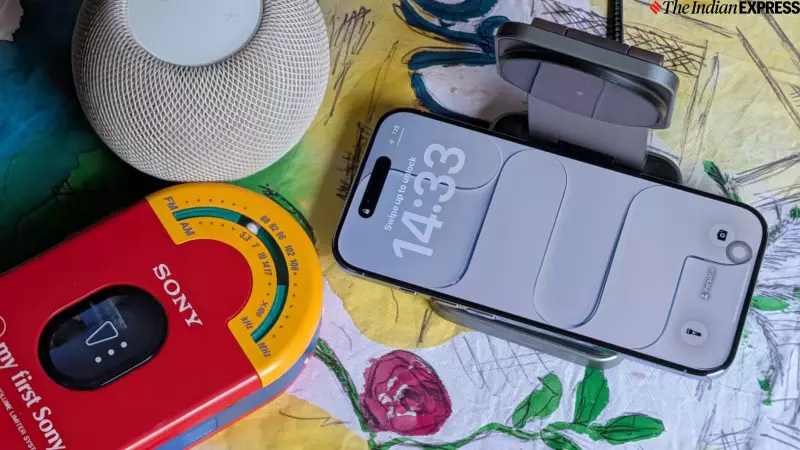
For many tech enthusiasts, weekends are for tinkering with gadgets. Anuj Bhatia, a personal technology writer, discovered a surprisingly fun iPhone customisation trick while working on his vintage iMac G4. The feature allows users to change the sound their iPhone makes when plugged in or unplugged, moving beyond the standard, often ignored, tone.
Unlocking Personalisation with Apple's Shortcuts App
The key to this customisation lies in Apple's built-in Shortcuts app. This powerful tool supports automations triggered by various events, including connecting or disconnecting a charger. It's important to note that Apple does not let you replace the default charging sound entirely. Instead, you can play an additional sound right after it. However, a simple workaround exists: keeping your iPhone on Silent Mode will mute the original sound, letting your custom audio take centre stage.
The process requires the Shortcuts app to be installed. If you've deleted it, you can easily reinstall it from the App Store. The customisation offers three distinct paths: playing a full song, using a short audio clip, or having Siri speak custom text.

Method 1: Set a Song from Apple Music
If you want your iPhone to play a favourite track every time you charge it, this method is for you. First, ensure the song is downloaded in your Apple Music library. Within the Shortcuts app, create a new automation for when the charger is connected (or disconnected). Select the 'Play Music' action, tap the greyed-out music text, and choose your song. Remember to configure settings like Shuffle and Repeat as needed. This method will play the entire selected track.
Method 2: Use a Short Audio Clip
For a quicker, more distinctive sound, you can use a custom audio clip. The clip should be brief, ideally one to three seconds long, and in a compatible format like MP3, AIFF, or WAV. You may need to convert files from formats like MP4 first. Copy the audio clip to your iPhone's clipboard via the Files app. In your charger automation within Shortcuts, add the 'Play Sound' action and select 'Clipboard' as the source. This will play your personalised sound bite.
Method 3: Have Siri Speak Custom Text
Perhaps the most creative option is to have Siri deliver a spoken message. This could be a motivational affirmation, a funny phrase, or a simple notification. In the automation setup, search for and add the 'Speak Text' action. Type the text you want Siri to say. You can further customise the voice by adjusting the language (like English India), pitch, and speed. A word of caution from the discoverer: avoid using curse words, as your phone will say them aloud, even in Silent or Do Not Disturb mode.
How to Mute the Default iPhone Charging Sound
To ensure you only hear your custom sound, you can silence the iPhone's default charging tone. The simplest way is to engage your iPhone's physical Silent Mode switch. If you also wish to disable the accompanying vibration, navigate to Settings > Sounds & Haptics and turn off 'System Haptics'.
This clever trick, stumbled upon during a weekend of gadget repair, highlights the depth of personalisation possible on iPhones. It's a simple way to add a dash of personality to a routine daily action. The steps work uniformly across iPhones and iPads, offering a fun project for any user looking to make their device feel more uniquely their own.