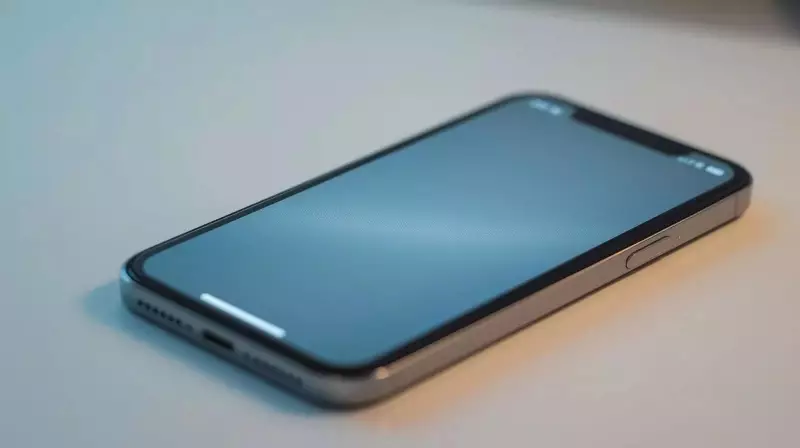
Many iPhone users face the frustrating problem of a frozen screen. The device suddenly stops responding, leaving you tapping helplessly. Understanding why this happens is the first step toward fixing it.
Common Causes of iPhone Freezing
Your iPhone might freeze because too many apps are running in the background. This overloads the system. Sometimes, a system task gets stuck, causing everything to halt.
Low battery power can also slow your phone dramatically. When the battery is weak, the device struggles to perform basic functions. It may appear completely stuck.

Storage space plays a crucial role too. When your iPhone's memory is almost full, it has little room to think. The phone needs space to update, save temporary files, and operate efficiently. These issues often build up quietly over time.
Your phone might work perfectly for days. Then, everything aligns poorly, and it suddenly stops responding. Recognizing these triggers helps prevent future freezes.
Apps as a Major Culprit
If your iPhone keeps hanging, an old or problematic app might be the reason. Apps frequently cause freezing, especially after software updates.
Some apps are not fully compatible with your current iOS version. Others contain bugs that only appear after extended use. Games, editing applications, and social media apps tend to demand more memory and resources.
Notice if your iPhone freezes while using the same app repeatedly. That specific app deserves closer inspection. Updating it to the latest version often resolves the issue. Alternatively, removing the app entirely can make a noticeable difference.
In many cases, simply closing unused apps regularly reduces the chance of your phone locking up again. This simple habit keeps your device running smoothly.
How to Force Restart a Frozen iPhone
When the screen does not respond and the phone will not turn off normally, a force restart is often the quickest solution. This process does not erase your data. It simply forces the system to reset itself.
Follow these steps carefully:
- Press and quickly release the volume up button.
- Press and quickly release the volume down button.
- Press and hold the side button.
- Release the side button when the Apple logo appears on the screen.
The phone may take a few seconds to restart. Once it does, it often works normally again. If nothing changes after multiple attempts, the problem might be more serious than a brief freeze.
Updating iOS Can Help
Outdated software frequently causes unexpected problems. Apple releases updates not only for new features but also to fix bugs that lead to freezing or crashes.
If your iPhone freezes often, checking for an iOS update is a sensible step. These updates improve app compatibility and enhance battery management.
Before updating, ensure your phone is adequately charged and connected to a stable Wi-Fi network. If storage is low, clearing some space first helps the update install smoothly. This action can also reduce future issues.
When to Seek Extra Support
You should look for additional support if the problem continues after restarting. If your iPhone keeps freezing even after restarts, updates, and app checks, it may indicate a deeper issue.
Hardware problems, battery wear, or more serious software faults can cause repeated freezing. Apple support guides can help you conduct further tests. Authorized service centers can run detailed diagnostics if needed.
Many freezes never reach this stage. They come and go, fixed quietly with a simple restart. However, if your phone feels unreliable day after day, it is worth paying attention before the problem grows worse.