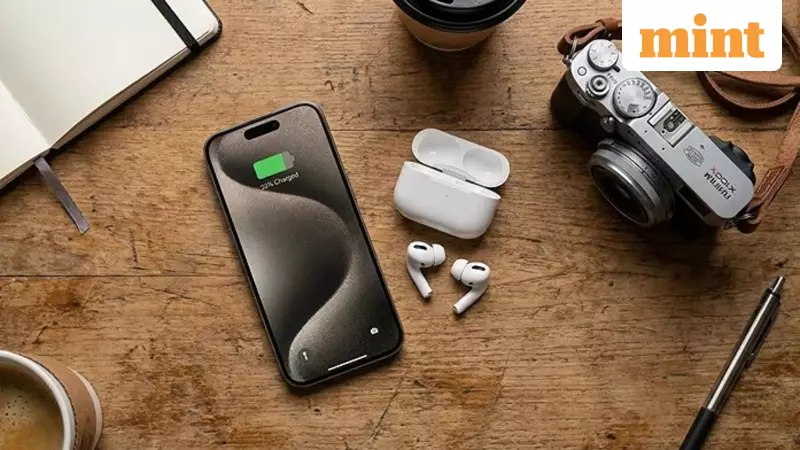
Apple has rolled out a clever new feature in its latest iOS 26 and iPadOS 26 software that transforms your AirPods into a convenient wireless remote for your iPhone's camera. This update allows users to snap photos and control video recording with a simple press on their AirPods stem, a boon for solo shooters, content creators, and travel enthusiasts.
Which iPhones and AirPods Are Compatible?
For this feature to work, you need the right hardware running the latest software. Your iPhone or iPad must be on iOS 26 or iPadOS 26, which includes models like the iPhone 15 series and newer. On the audio side, supported AirPods models are the AirPods 4 (both standard and the ANC variant), the AirPods Pro (2nd generation), and the new AirPods Pro 3. Notably, older models like the AirPods 3rd generation or the first AirPods Pro do not support this camera control function.
Ensuring your AirPods have the latest firmware is crucial. The easiest method is to leave them in their charging case while the case is plugged in and placed near your paired iPhone overnight, allowing automatic updates to complete.

How to Set Up Your AirPods as a Camera Shutter
Getting started is straightforward. First, pair your compatible AirPods with your iPhone and wear at least one earbud. Confirm the connection is active in your iPhone's Settings under Bluetooth.
Next, open the Settings app, tap on your AirPods' name listed there, or navigate to Bluetooth and tap the info icon (the 'i' in a circle) next to your connected AirPods. Scroll down to find the new "Camera Control" or "Camera Remote" option.
Inside this menu, you can customize the press action. You can choose "Press Once" where a quick squeeze on the stem takes a photo or starts/stops a video. Alternatively, select "Press and Hold" where holding the stem triggers the action, useful for a 3-second countdown before capturing a burst of photos in Photo mode.
Using Your AirPods Remote for Photography
Once configured, using the feature is simple. Launch the Camera app on your iPhone and select your desired mode, be it Photo or Video. With your AirPods in, just press the stem on either the left or right earbud. You will hear an audio confirmation, and your photo or video will be saved directly to the Photos app.
This functionality shines in several scenarios: taking hands-free selfies, getting everyone in a group photo, or controlling shots when your phone is mounted on a tripod. It's an underrated gem in the iOS 26 update that significantly elevates mobile photography flexibility.
For the best experience, experiment with different camera modes to see how the remote works with bursts or timers. If you encounter issues, try restarting Bluetooth on your iPhone or double-check that your AirPods firmware is up to date.