How to Enhance Portrait Quality Using Google Gemini Prompts: A Step-by-Step Guide
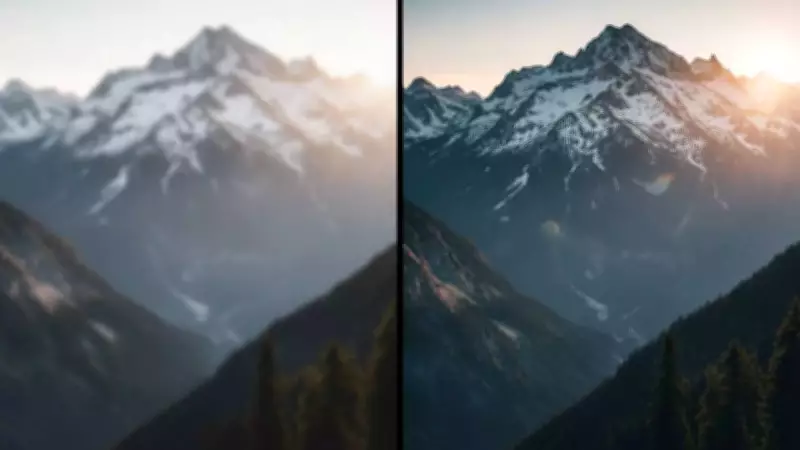
Blurry selfies or low-quality portraits can be incredibly frustrating. You desire a sharp, natural-looking image without spending hours on complex editing software. While it might seem challenging, tools like Google Gemini reportedly make this process surprisingly straightforward. With a clear prompt, you can enhance a portrait in seconds, maintain the person's identity, and simultaneously improve lighting, depth, and detail. Experts emphasize that the key isn't just the AI technology; even a minor error in instructions can distort facial features. A simple, structured prompt can convert a low-resolution photo into an image that appears captured with a high-end camera. This article explains how to use the right prompt, outlines steps, offers quick tips, and provides additional pointers for faster, better results.
How to Enhance Image Quality Using Google Gemini Prompts
Step 1: Open Google Gemini
Google Gemini is reportedly excellent for handling fine details. It manages subtle aspects such as skin texture, facial geometry, and background consistency, making it ideal for preserving identity. Begin by uploading your portrait in JPG or PNG format. While tiny, blurry images might work, the AI often produces cleaner outcomes with slightly higher-quality originals.
Step 2: Write a Clear Prompt
A good prompt is short, precise, and clear. Here are three versions you could use:

- Prompt 1: Enhance this portrait while keeping the person's identity, face shape, and expression exactly as in the original. Only subtle cleanup is allowed. Keep the background unchanged with no new objects, no swaps, no layout shifts. Recreate the image as if shot with a Sony A1 camera using an 85mm f1.4 lens at f1.6, ISO 100, 1/200 shutter speed. Shallow depth of field, sharp facial focus, and natural editorial colours are important. Lighting should match the reference, with soft highlights, cooler shadows, gentle contrast, and smooth gradations. Keep skin textures realistic, slight film grain, and natural saturation. Render in 4K, 10-bit colour, portrait crop, cinematic style. Avoid fake glow, harsh lighting, or over-smoothed skin.
- Prompt 2: Upgrade the portrait to premium clarity while strictly preserving the subject's identity and facial geometry. Expression and face shape should not change. Minor feature clean-up is fine, but nothing drastic. Keep the background identical with no additions, replacements, or rearrangements. The scene must look exactly as in the reference. Simulate a high-end Sony A1 with an 85mm f1.4 lens, shallow depth of field, and perfect facial focus. Lighting should follow the original direction and mood, with soft shadows, warm highlights, subtle micro-contrast, and smooth tonal transitions. Maintain natural skin texture, neutral colour tones, and subtle grain. Render in 4K, 10-bit, portrait crop, cinematic editorial style. Avoid fake glow, flat light, or face morphing.
- Prompt 3: Improve this portrait while keeping the subject completely recognisable. Do not change facial proportions, expression, or identity. Only allow very subtle touch-ups to refine features. Background must remain exactly the same with no new objects or layout changes. The environment should feel identical to the original. Render as if taken with a Sony A1 camera and 85mm f1.4 lens. Aim for cinematic shallow focus, perfect facial detail, and realistic editorial colours. Lighting should match the original photo with soft directional light, warm highlights, and cooler shadows for depth. Preserve real skin texture, natural saturation, subtle film grain, and smooth contrast. Output in 4K, 10-bit colour, portrait crop. Avoid background alterations, over-smoothing, fake glow, or harsh lighting.
Step 3: Click 'Okay'
Once the prompt is ready, run it in Google Gemini. Typically, it takes only a few seconds. The AI reportedly sharpens facial features, balances lighting, and keeps the environment intact. Results often appear immediate, but sometimes minor tweaks are necessary, depending on the original image quality.

Quick Tips to Enhance Low Image Quality
- Keep prompts simple. Too many instructions can confuse the AI.
- Mention camera or lens details if you want a realistic, premium look.
- Be specific about lighting. Indicate angles, shadows, and mood.
- Avoid vague instructions like 'make it pretty.' Concrete guidance works best.
- Try small iterations. Adjusting contrast or minor feature cleanup can improve realism.
By following these steps and tips, you can effectively use Google Gemini to enhance portrait quality, transforming ordinary photos into professional-grade images with ease.