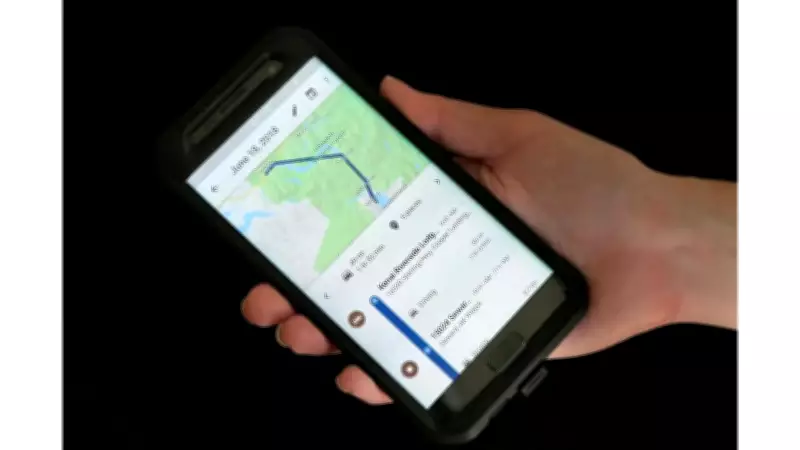
Are you planning a trip recently? Whether you are driving to work, heading on a holiday, or visiting a new city, checking for crisis alerts before you travel can help you avoid dangerous situations. Among others one feature that Google Maps offers is crisis-related alerts that can show active emergencies such as floods, wildfires, earthquakes, hurricanes, and tropical storms. These alerts help users understand and decide if they should continue with their planned route. The feature is especially useful during extreme weather events and natural disasters, when roads may be closed or situations may change rapidly.
Importance of Google Maps Crisis Alerts
Natural disasters can disrupt travel without warning. Flooded roads, wildfire zones, earthquake damage, and severe storms can make a route unsafe. Google Maps makes it easier for users to spot potential risks before entering an affected area by highlighting crisis information directly on the map.
The alerts include information from local, national, and international authorities. Users may also find emergency phone numbers, official websites, updates, and news related to the event. As stated on an official Google help page, crisis-related alerts show up on your map if:

- You search for an area including a wildfire and are at the correct zoom level
- You select a navigation route that enters an area impacted by a crisis
What Google Maps Crisis Alerts Can Show
Alerts make emergency information from local, national or international authorities easily accessible during a crisis. You can find that information highlighted on Google Maps. Examples of crisis information include emergency phone numbers, websites or map visualisations for a detailed view.
Google Maps shows alerts for these natural disasters:
- Earthquakes
- Floods
- Hurricanes or typhoons
- Tropical storms
- Wildfires
Tip: Wildfire boundaries may not appear at all zoom levels.
How to Check Crisis Alerts on Google Maps Before Travelling
The steps are simple and take less than a minute.
Step 1: Open Google Maps before you travel. Do this before you step out, not after you are already on the road.
Step 2: Search the area or destination you are heading to.
Step 3: Look for a crisis alert on the map view. If an active crisis exists in that area, an alert card will appear. Note: wildfire boundaries may not show at all zoom levels. Zoom in if you do not see details.
Step 4: Tap the alert to read more. Tapping the crisis icon or alert card opens a full crisis sheet which may include safety updates, news articles, emergency phone numbers, and official websites.
Step 5: Reroute if your path enters an affected area.
How to Check More Updates About an Event
To learn and share more about an event:
- Go to About
- Find a summary of the event and other event details.
- To share the event, select Share.
- To share the event’s location, select Share location.
- Under Help and information, find a list of related external resources.
The crisis information sheet often provides more than just a warning. Users may be able to:

- Check updates about the event
- Learn more about the affected region
- Access emergency contacts
- Find related news reports
- Report road closures to help other travellers