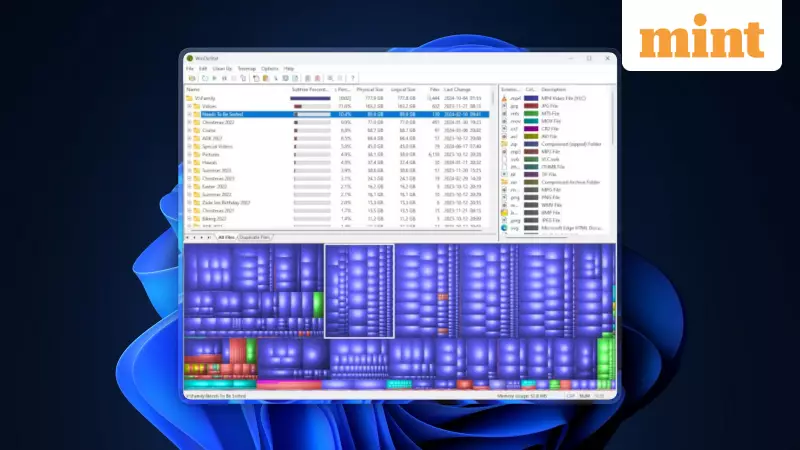
For tech enthusiasts and professionals who constantly test new applications, a cluttered primary drive is a common headache. Forgotten software installations and accumulated cache files can silently consume gigabytes of precious storage, slowing down system performance. A simple, free, and open-source solution exists to tackle this problem head-on: a tool called WinDirStat.
What is WinDirStat and How to Get It Safely
WinDirStat, short for Windows Directory Statistics, is a free and open-source disk usage analyzer and cleanup tool for Microsoft Windows. It provides a powerful visual representation of your storage, making it easy to identify space-hogging files and folders. To ensure safety from malware, it is crucial to download the software only from its official website, windirstat.net, or its official GitHub repository. The installation process is straightforward: run the downloaded .exe file, accept the license agreement, and choose your preferred components, such as desktop shortcuts. Portable versions are also available for users who prefer not to install.
A Step-by-Step Guide to Cleaning Your Drive
Using WinDirStat is an intuitive process. Upon launching the application, you select the drive or specific folder you wish to analyze. The tool then rapidly scans the directory tree. The result is displayed in a unique, multi-pane interface. One pane shows a traditional directory tree, while another presents a colourful treemap visualization.

In this treemap, every file and folder is represented by a rectangle. The size of each rectangle corresponds to the item's size on disk, so the largest files immediately stand out. Different colours indicate various file types; for instance, blue might represent video files (.mp4, .mov), while yellow could indicate archive files. To clean up, you can navigate through the directory tree to locate temporary files, cache folders, or old installs. Right-clicking on any item gives you options like "Delete (to Recycle Bin)" for safe removal or "Explorer Here" to open the location in File Explorer. You can hold the Ctrl key to select and delete multiple items at once.
Pro Tips for Maximum Storage Recovery
To make the most of WinDirStat, employ these expert strategies. Use the extension filter in the list view to quickly target all files of a specific type, such as large video formats. The tool can also help identify duplicate files. For optimal maintenance, consider running a scan monthly on frequently cluttered areas like your Downloads folder or game library directories. After using WinDirStat, you can pair it with Windows' built-in Disk Cleanup utility to remove system files. Based on typical usage, an average PC user can expect to reclaim anywhere from 10 to 50 gigabytes of storage through this process.
The experience of tech writer Amit Rahi, who has spent over five years reviewing gadgets, underscores the tool's utility. Faced with a main drive filled with residual files from software reviews, WinDirStat's visual approach made identifying and deleting unnecessary data significantly easier. This free tool transforms the tedious task of storage management into a quick and efficient visual exercise, helping users regain control over their digital space.